You've written a book. Or an article, a blog post, or another version of prose content. You've tweaked it until your eyes crossed and sent it for feedback, confident it conveys your story or message.
Except...you still see those pesky grammar and spelling error indicators in your digital document, and your review team is leaving notes that say, "run global edits."
We've all been there. Many people say this is their least favorite part of the creation process. However, you can use some simple tricks to streamline the revision slog, polish your copy—and not lose your sanity while doing it.
Also called global edits, "running globals" is the fast way to find and replace multiple instances of commonly misspelled, misused, or unnecessary words and phrases.
It applies to most forms of writing and is particularly handy for book manuscripts and other long-form content. You can also have content- or author-specific globals, but as the terms imply, they're more focused than those covered here.
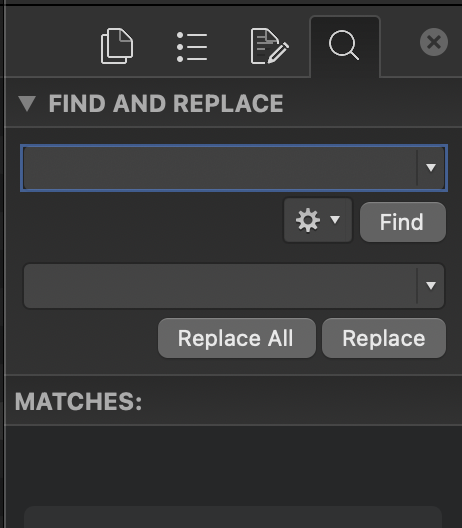
Note: this technique assumes that your software has a Find and Replace or Advanced Find and Replace feature. Microsoft Word, OpenOffice, LibreOffice, and most other office suite products do. TextEdit, Notes, blog platforms, and specialty writing programs might not.
Ready? Let's dive into some of the most common mistakes and how to change them in only a few clicks.
FIND
REPLACE WITH
Errors to replace globally
forwards
backwards
towards
onwards
upwards
afterwards
downwards
anyways
looked to
looked over to
replied back
smiled to
alright (NOT A WORD!)
forward
backward
toward
backward
upward
afterward
downward
anyway
looked at
looked at
replied
smiled at
all right (match case, often at beginning of sentence but not always)
fell/knelt/crouched/squatted down
nodded his/her head
waved his/her hands
folded/crossed his arms over his chest
double space (hit the space bar twice)
^t (tab)
^l (soft return) (lowercase L)
^p^p then try ^p ^p (with a space between)
fell/knelt/crouched/squatted
nodded
waved
folded/crossed his arms (or her/their arms)
single space (hit the space bar once)
blank (don't put anything in)
^p (paragraph break)
^p
Go through these with a Find Next and Replace if needed (occasionally, it's correct as it stands)
FIND
wrapped up
opened up
turned/spun/whirled around
stood up
stand up
called out
it's
," h or s or t (use Match Case) (happens in dialogue tags)
,"
REPLACE WITH
wrapped
opened
turned/spun/whirled
stood, unless "stood up to bullies" or something similar
stand (see qualifier for stood)
called, unless "I feel called out" or something similar
its (situationally)
," h or s or t (use Match Case) (happens in dialogue tags)
." E.g., "Blah blah blah," he smiled s/b "Blah blah blah." He smiled. Make sure you're using a dialogue verb (smirked, breathed, and sighed are not)
...
Ellipses have no space before or after, unless the trailing period starts a new sentence. Nor does any other punctuation mark follow unless it's a closing quotation mark.
Now that we have the lists, here's an example of a global Find and Replace in action. In this instance, the search phrase "nodded his head" pulled up four matches. Since this is an automatic correction rather than a situational one, typing "nodded" in the Replace bar and tapping "Replace All" will fix all four instances with one click.
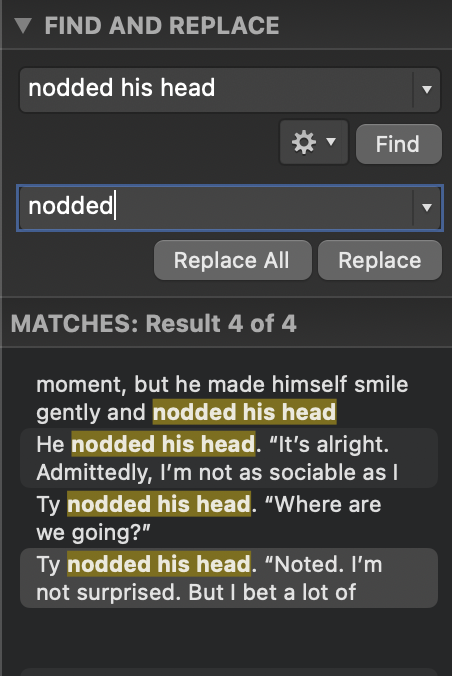
If you need to Match Case, the gear icon next to "Find" gives you that option, plus other advanced features.
(Note: screenshots reflect the layout in Word for Mac, Office 365. The PC interface for Word, Office 365 is a popup window under Editing > Find > Advanced Find and Replace with separate tabs for "Find" and "Replace.")
Next is a situational global (Find Next and Replace) for "it's." If you need to fix any instances, enter the correct spelling into the Replace bar and tap "Replace" instead of "Replace All." Then tap "Find" (or "Find Next") to advance to the next match.
You can also search for "its" (no apostrophe) to locate where you might need "it's" instead.
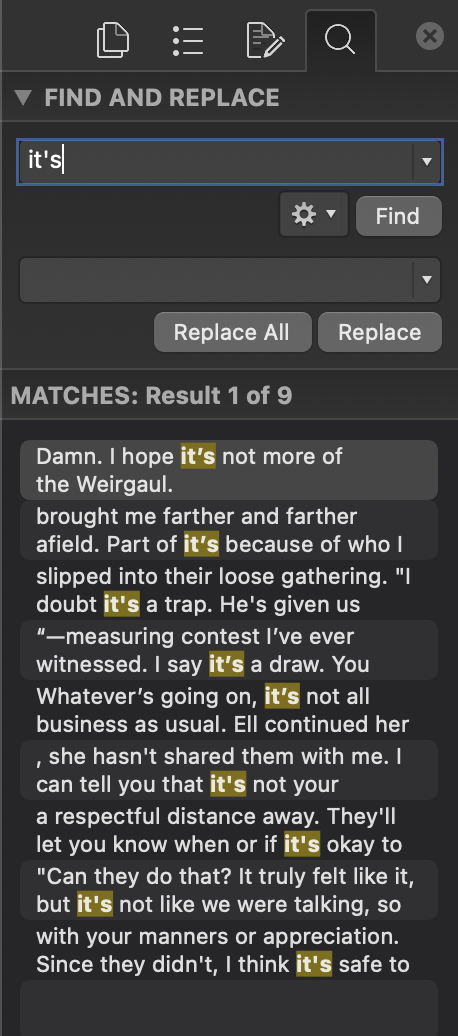
This feature is also great when you have a name that ends in "s" and needs to be possessive, and you (or your dictation software) keep inserting "s's" instead of "s'." Or you can't remember whether you spelled someone's name as "Steven" or "Stephen" and used both for the same person.
(Hey, Maurius' dog might have a grudge against next-door neighbor Steven, but let's not confuse him with Stephen from the next block over. That could get insulting.)
There you have it: faster ways to make a lot of standard revisions. While not comprehensive—most editors have a mental checklist several pages long, as do I—using these handy corrections will help your copy shine. Incidentally, they'll also help you become a better first draft writer.
Now that's what I call a win-win situation.
Happy writing!
